Save products from any store in one click, right from Chrome.
The Spaidoo Chrome extension adds a button to the online stores you visit. What you like goes to your favorites library, the same one you have on the Spaidoo portal.
- Free
- No account needed to start
- For Chrome on desktop
On your phone? Your library is on the Spaidoo portal

Over-ear headphones
€59.90Add to cartYour library
- Over-ear headphonesSonora
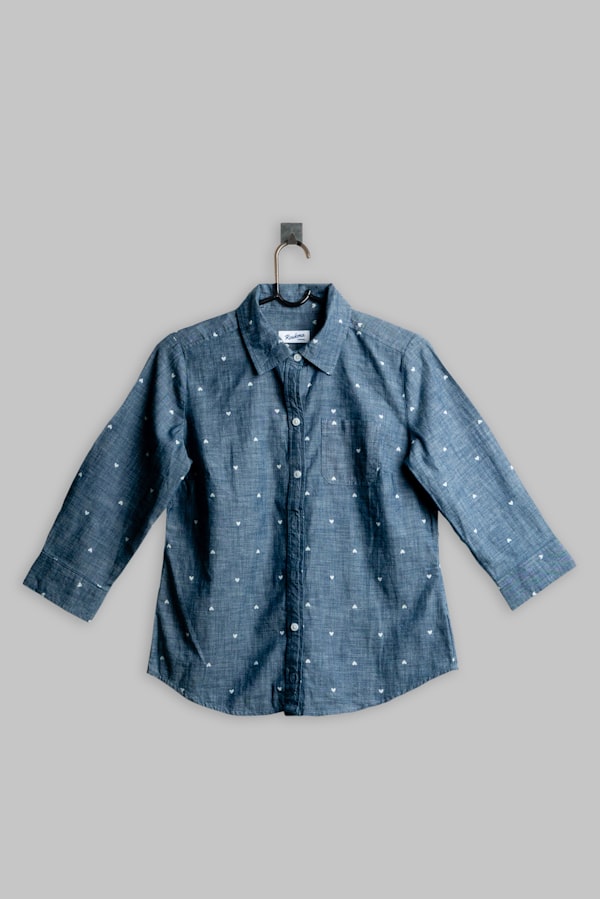 Linen shirtLino & Co
 Table lampLumen
 Running shoesPista
How the extension works.
Three steps, and the first one you only do once.
- 01
Add it to Chrome.
From the Chrome Web Store. It's free and installs in a few seconds.
- 02
Shop as usual.
The Spaidoo button shows up on the online stores you visit, tucked in a corner and out of the way.
- 03
One click, saved.
The product goes to your library with its name, photo, price and the link back to the store.
What the extension does.
You don't need an account to save. To organize, you do: lists, malls, notes, the board and notices come with your Spaidoo portal account.
Saves products and stores.
On a product page, the button saves it in one click. And if it's the whole store you like, you can save that too.
Tells you if you already have it.
When you come back to a product you saved, the button reminds you: “Already saved”. No duplicates.
Your library, without leaving the store.
Open it on top of the page you're on: search, filter and get back to that thing you looked at last month.
- Account
Lists and malls.
Group what you save however suits you —a trip, a room, a present— and gather your favorite stores in your own malls. Lists can be collaborative.
- Account
Notes on your products.
Jot down the size, the color or why you liked it. The note stays with the product.
- Account
Board and notices.
The board gathers the news from the stores you follow. And if a store sends you a notice, say a price drop on something you saved, you see it while you browse.
What ChatGPT recommends, you can save too.
When ChatGPT shows you products, the extension adds the Spaidoo button next to each one. One click and it's in your library, with the link to the store that sells it.
From the same button you can pick a list, copy the link or go straight to the store.



One library, wherever you are.
The extension keeps nothing on the side: it's the same library you have on the Spaidoo portal and in the stores that already run Spaidoo.
On the Spaidoo portal
Your whole library at my.spaidoo.com, on your phone too, where Chrome has no extensions.
In Chrome
The extension, on any online store you visit from your computer.
In stores with Spaidoo
The store's own button is already there, so the extension steps aside: you'll never see two. With your account, what you save goes to the same place.
Off in one click.
From its icon in Chrome. When it's off, it does nothing.
Notices, your way.
The notices that pop up while you browse can be turned off from the notice itself or from the extension's menu.
Speaks your language.
It shows up in your language, with nothing for you to set.
Questions about the Chrome extension.
01Is the Spaidoo Chrome extension free?
02Do I need an account to use the extension?
03Which stores does the extension work on?
04Can I save what ChatGPT recommends?
05Does it work on my phone?
06How do I turn off the extension or its notices?
Your wishlist, in every store.
Free, for Chrome on desktop. On your phone, your library is waiting on the Spaidoo portal.